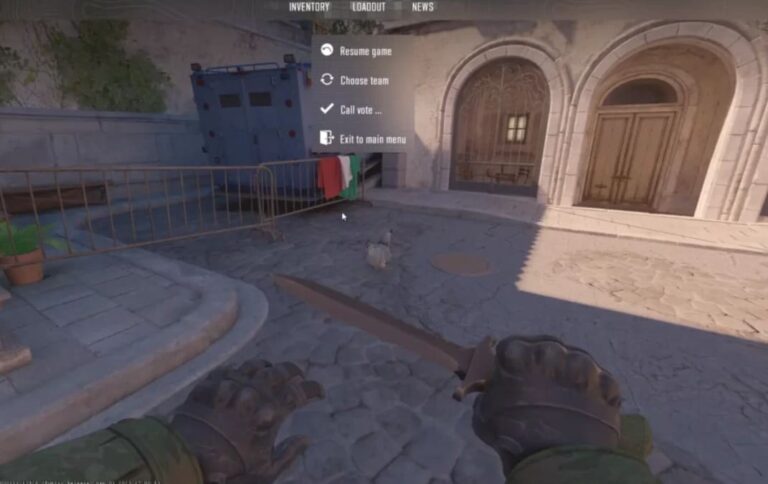
The “connecting to Counter-Strike network CS2” error is one of the most frustrating issues players encounter, particularly during peak gaming hours or when Valve rolls out major updates.
This error effectively locks you out of matchmaking and all online features, leaving you staring at a connection screen while your friends are already in-game.
The good news? Despite how serious it looks, this error is rarely caused by complex technical problems.
Most cases stem from straightforward issues like scheduled server maintenance, pending game updates, or corrupted local files.
The key to resolving it quickly is understanding what’s actually causing the problem before you start troubleshooting.
This guide walks you through the most effective solutions in order of likelihood, so you can get back to playing without wasting time on fixes that don’t apply to your situation.
Connecting to Counter-Strike Network CS2 Error Fix
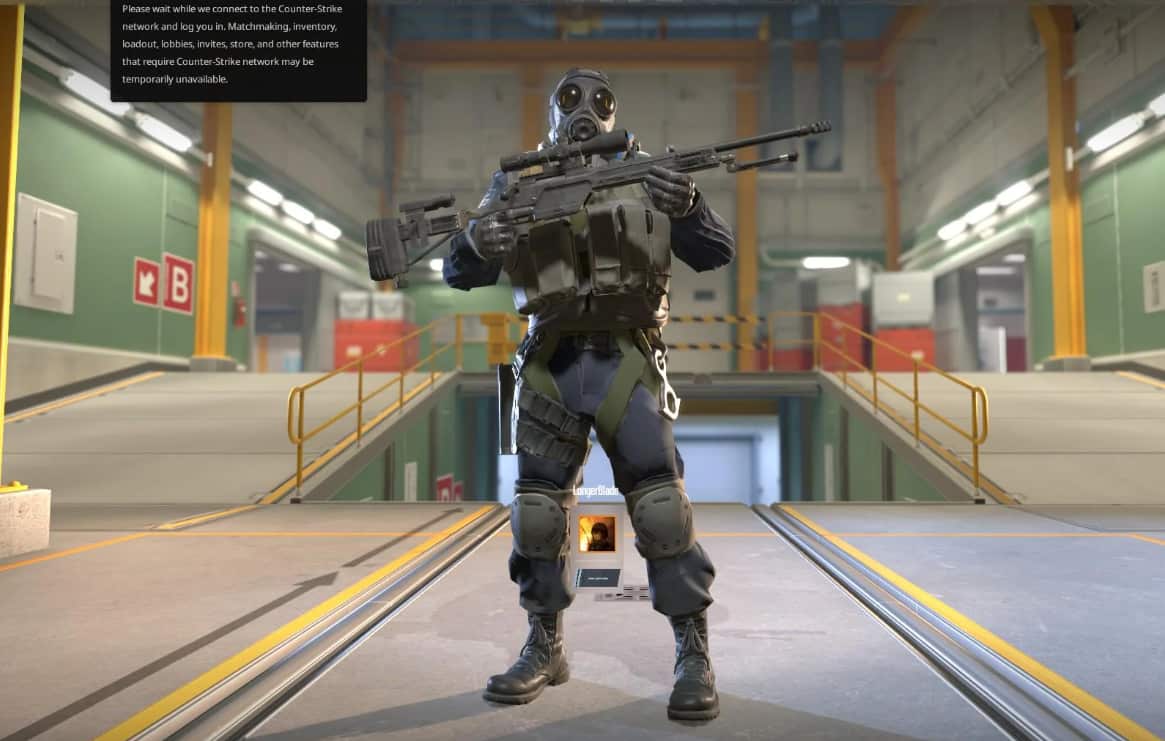
Understanding the “Connecting to Counter-Strike Network” Error
This error appears when CS2 cannot establish or maintain a connection with Steam’s backend services or Valve’s game servers.
While it might seem like something is wrong with your game installation or internet connection, the root cause is often completely external to your system.
The CS2 community on Reddit and other forums consistently reports spikes in this error during specific timeframes—particularly during update rollouts and Steam’s weekly maintenance periods.
Recognizing these patterns can save you significant troubleshooting time.
Let’s break down the proven fixes, starting with the quickest and easiest solutions.
Solution 1: Perform a Complete Restart Sequence
- Restart CS2 Completely
Don’t just return to the main menu—fully close the game. This forces CS2 to send a fresh connection request to Steam’s servers when you relaunch. Many players overlook this step and wonder why the error persists.
- Restart Steam
Steam’s background processes can sometimes hang or fall out of sync with the game client. A full restart of Steam often resolves these connection handshake failures. Make sure Steam completely shuts down (check your system tray) before restarting.
- Restart Your Router or Modem
Temporary ISP routing issues can cause CS2 to get stuck on the “connecting to Counter-Strike network” screen. Power cycle your router by unplugging it for 30 seconds, then plugging it back in. This resets your connection path and clears any temporary network glitches.
Solution 2: Check If It’s Tuesday Evening (No, Really)
- Weekly Steam Maintenance Window
Steam performs routine maintenance every Tuesday between approximately 6:00 PM and 9:00 PM EST. During this window, online services across all Steam games briefly become unavailable or unstable.
- Why This Causes the Error
Instead of displaying a clear maintenance message, CS2 shows the generic “connecting to Counter-Strike network” error when Steam services are paused. This confuses many players into thinking something is broken on their end.
- What You Should Do
If you encounter this error on a Tuesday evening, simply wait 10–20 minutes and try again. There’s no need to troubleshoot—this is not a bug or a problem with your client. Grab a snack and check back shortly.
Solution 3: Check for Pending CS2 Updates
- How Updates Cause Disconnections
When Valve releases a CS2 update, any game clients that are already running will be blocked from connecting to servers until the update is installed. The game doesn’t always notify you clearly about this.
- Common Symptoms
This scenario often manifests as “CS2 can’t connect to Counter-Strike network” errors, even though your internet connection is perfectly stable and other games work fine.
- The Fix
Close CS2 completely, restart Steam, and allow any pending updates to download and install. Don’t try to launch the game until the update progress bar shows 100% completion. Once the update finishes, restart Steam one more time before launching CS2.
Solution 4: Verify CS2 Server Status
- Why You Should Check Servers First
Sometimes the problem isn’t on your end at all. A quick server status check can confirm whether the issue is global, saving you from unnecessary local troubleshooting.
- Where to Check
Use websites like Steamstat.us or community-run status trackers that show real-time availability of CS2 and Steam services. These sites monitor server health and display the current status for different regions.
- What the Status Means
If the servers show anything other than “Normal,” no amount of local troubleshooting will help. Server issues on Valve’s end often trigger “CS2 unknown network error encountered” messages for all players.
| Server Status | Meaning | Recommended Action |
|---|---|---|
| Normal | Servers fully operational | Proceed with local fixes |
| Degraded | Partial outages or slowdowns | Expect delays; it may resolve itself |
| Offline | Complete server outage | Wait for Valve to restore service |
Solution 5: Verify Integrity of Game Files
Corrupted or missing game files are a common but often overlooked cause of connection errors. Steam includes a built-in repair tool that can detect and fix these issues automatically.
Step-by-Step File Verification
- Step 1: Open CS2 Properties Right-click on Counter-Strike 2 in your Steam Library, then select “Properties” from the context menu.
- Step 2: Navigate to Installed Files In the Properties window, find and click on the “Installed Files” tab. This section contains Steam’s file management and repair tools.
- Step 3: Start File Verification Click the button labeled “Verify integrity of game files” and wait for Steam to complete the scan. This process checks every game file against the official versions stored on Valve’s servers.
- Step 4: Automatic Repair If Steam detects any corrupted, modified, or missing files, it will automatically re-download them. Depending on how many files need replacement, this can take anywhere from 30 seconds to several minutes.
- Step 5: Restart After Completion Once verification finishes, fully restart Steam before attempting to launch CS2. This ensures all repaired files are properly loaded.
| Step | Action | Expected Result |
|---|---|---|
| 1 | Open Properties | Access repair tools |
| 2 | Installed Files tab | Locate the verification option |
| 3 | Verify files | Steam scans for corruption |
| 4 | Auto re-download | Restores missing/broken files |
| 5 | Restart Steam | Loads repaired files |
Quick Resolution Checklist
Before diving into complex troubleshooting, run through this checklist in order:
- ✓ Restart everything – Close CS2 completely, restart Steam, and power cycle your router
- ✓ Check the calendar – If it’s Tuesday evening (6-9 PM EST), wait for maintenance to finish
- ✓ Install updates – Ensure CS2 is fully updated before attempting to connect
- ✓ Check server status – Verify that CS2 servers are operational globally
- ✓ Verify game files – Use Steam’s built-in tool to repair any corrupted data
Final Thoughts:
The “connecting to Counter-Strike network CS2” error rarely requires advanced technical troubleshooting.
In the vast majority of cases reported across Reddit, Steam forums, and community Discord servers, the issue is temporary and related to either scheduled maintenance, pending updates, or minor file corruption.
By following the solutions outlined in this guide, you’ll address nearly every common cause of this error.
Most players find their issue resolved within 5-10 minutes using the restart sequence or file verification steps.
If you’ve exhausted all these solutions and the error persists beyond 24 hours, consider reaching out to Steam Support or checking official CS2 social media channels for announcements about extended outages or known issues affecting your region.
Once resolved, your connection to CS2 network services should remain stable unless Valve pushes a new update or maintenance window. Happy fragging!
Also Read:
About the Author